> ## Documentation Index
> Fetch the complete documentation index at: https://openops-ecb4f397-mintlify-add-install-command-explanation-5.mintlify.site/llms.txt
> Use this file to discover all available pages before exploring further.
# Development Environment
> Setting up the development environment for contributing to OpenOps
Before you start contributing to OpenOps, you need to set up a development environment. While you can set up a local environment, using GitHub Codespaces is the easiest way to get started.
## Fork the OpenOps repository
Follow these steps to fork the OpenOps repository:
1. Go to [https://github.com/openops-cloud/openops](https://github.com/openops-cloud/openops).
2. Click the **Fork** button in the top right corner.
3. On the fork configuration page, select the owner to fork under (either your personal account or one of your organizations), then click **Create Fork**.
Your fork will be available at `https://github.com/your_github_account_or_organization/openops`.
## Set up Codespaces
In your OpenOps fork, click **\<> Code**, open the **Codespaces** tab, and click **Create codespace on main**:
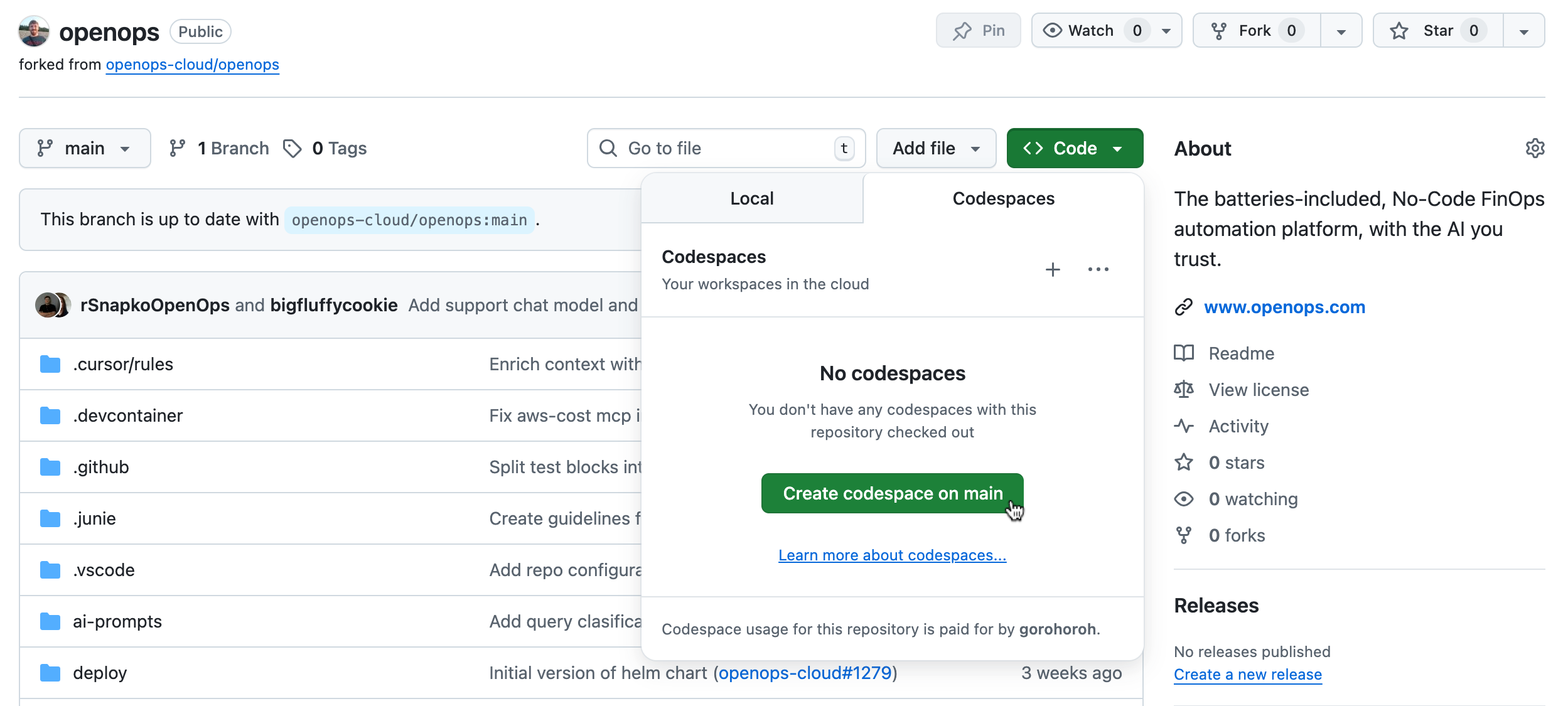 GitHub will open a new browser tab with a codespace. Wait for it to finish setting up.
Review the extensions that Codespaces recommends. Consider installing **Prettier – Code formatter** and **Jest Runner**.
Codespaces will automatically run `npm start` in the terminal.
In the **Ports** tool window, click **Open in browser** in the **App Frontend** row to open the OpenOps frontend in a new tab:
GitHub will open a new browser tab with a codespace. Wait for it to finish setting up.
Review the extensions that Codespaces recommends. Consider installing **Prettier – Code formatter** and **Jest Runner**.
Codespaces will automatically run `npm start` in the terminal.
In the **Ports** tool window, click **Open in browser** in the **App Frontend** row to open the OpenOps frontend in a new tab:
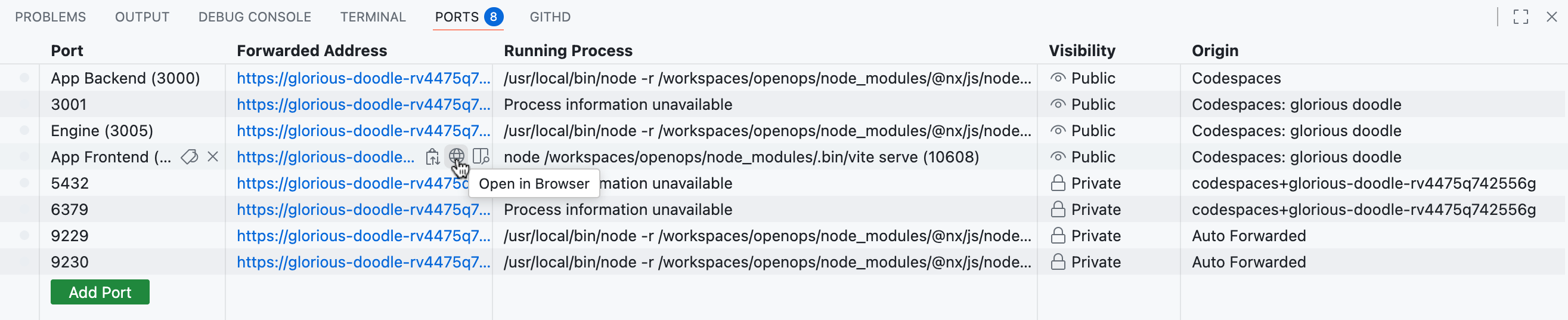 When the OpenOps frontend opens, log in with the following credentials:
* Username: `Dev@openops.com`
* Password: `12345678`
When developing on Codespaces, keep in mind the following:
* GitHub limits Codespaces usage for free accounts when working on a personal fork. To access more Codespaces hours, consider forking to an organization.
* After extended inactivity, Codespaces may lose connectivity between ports used by OpenOps components. To fix this, do one of the following:
* Run `sh .devcontainer/codespaces.sh` in the terminal.
* In the **Ports** tab, make the following ports public: `3000`, `3001`, `3005`, `4200`.
When the OpenOps frontend opens, log in with the following credentials:
* Username: `Dev@openops.com`
* Password: `12345678`
When developing on Codespaces, keep in mind the following:
* GitHub limits Codespaces usage for free accounts when working on a personal fork. To access more Codespaces hours, consider forking to an organization.
* After extended inactivity, Codespaces may lose connectivity between ports used by OpenOps components. To fix this, do one of the following:
* Run `sh .devcontainer/codespaces.sh` in the terminal.
* In the **Ports** tab, make the following ports public: `3000`, `3001`, `3005`, `4200`.